


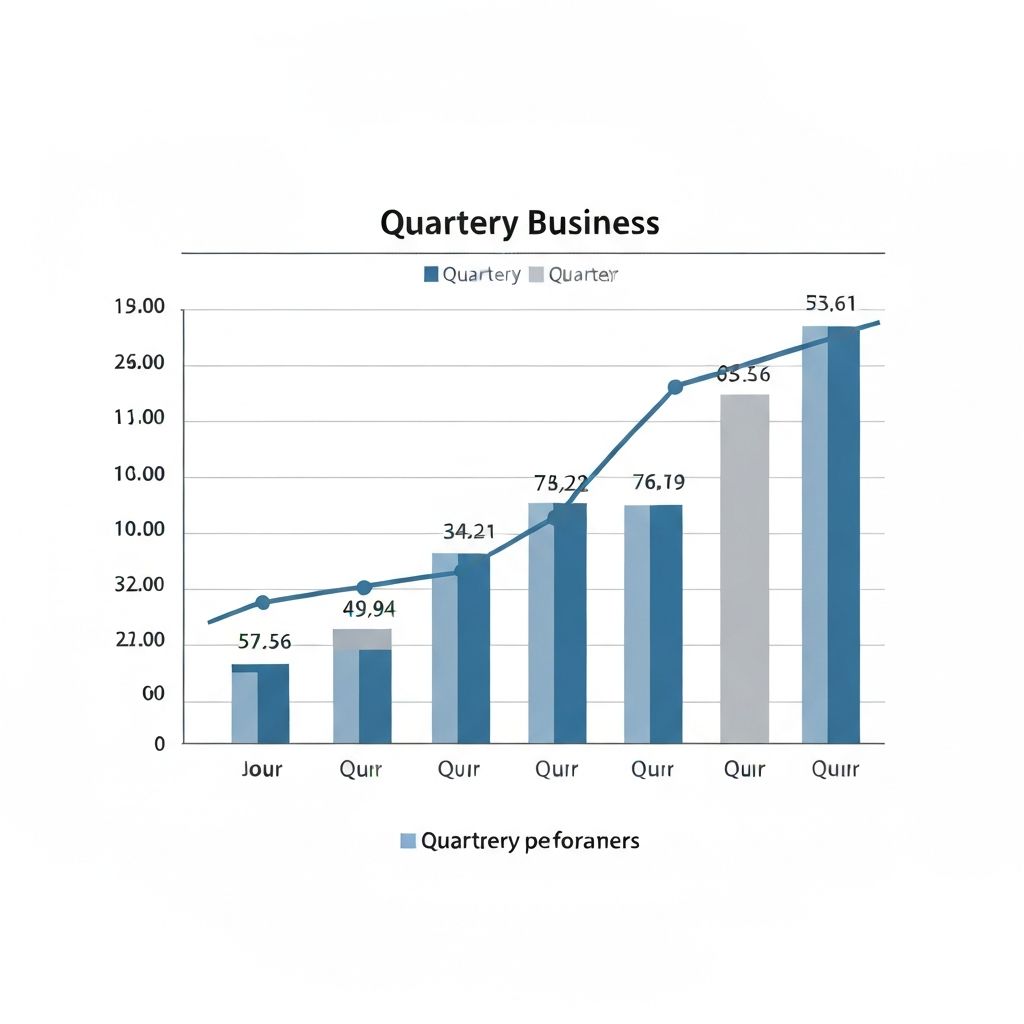
I've sat through maybe 500 presentations in my career. Conservative estimate. And I can tell you exactly what makes me tune out: a bar graph with 47 colors, gridlines everywhere, and data labels that overlap like a traffic jam.
The thing is, most people don't set out to make ugly charts. They just don't have time to fiddle with Excel for 45 minutes. They need a bar graph creator that works fast and doesn't require a design degree.
That's what this guide is about. Not theory. Actual steps to make bar charts that communicate, not confuse.
When Should You Even Use a Bar Graph?
Let me save you some pain. Use a bar chart when:
- You're comparing discrete categories (products, regions, quarters)
- You want to show ranking or relative size
- Your audience needs to make quick comparisons
Don't use it when you have:
- Time-series data with many points (line chart is better)
- Parts of a whole with few categories (pie chart works)
- Two variables you want to correlate (scatter plot)
I once watched a VP present year-over-year growth using a bar chart with 60 bars—one for each month over 5 years. It looked like a barcode. A line chart would've told that story in 2 seconds.
The Anatomy of a Bar Graph That Actually Works
Here's what separates a decent bar chart from a good one:
| Element | Bad Practice | Better Approach |
|---|---|---|
| Colors | Rainbow palette | 2-3 colors max, one highlight color |
| Data labels | On every bar | Only on bars you want to emphasize |
| Gridlines | Heavy, dark lines | Light or none |
| Title | "Q3 Sales Data" | "Q3 Sales Up 23% vs Last Year" |
| Sorting | Alphabetical | By value (largest to smallest) |
That last point—sorting—is one most people miss. Unless there's a logical order (months, stages), sort your bars by value. It turns visual chaos into a clear ranking.
3 Ways to Create Bar Graphs (Ranked by Pain Level)
Option 1: Excel / Google Sheets
The classic. Everyone knows it. Everyone fights with it.
The process:
- Select your data
- Insert → Chart → Bar Chart
- Spend 20 minutes trying to remove the legend that keeps appearing in the wrong spot
- Give up and leave it
I'm not bashing spreadsheets—they're great for quick internal stuff. But the moment you need something presentation-ready, you're in formatting hell.
Option 2: Design Tools (Canva, Figma)
Better looking output, but you're essentially drawing the chart. If your data changes, you're redoing everything manually. Fine for one-off infographics. Terrible for anything recurring.
Option 3: AI-Powered Bar Graph Creator
This is where I've landed for most of my work now. Tools like [ChartGen.ai](/) let you describe what you want in plain English and get a finished chart.
No clicking through menus. No memorizing where the "format axis" option is buried.
Using ChartGen.ai as Your Bar Graph Creator
I'll be specific here because vague tool recommendations are useless.
Step 1: Upload or Paste Your Data
ChartGen accepts CSV, Excel files, or you can just paste data directly. I usually paste from Google Sheets—takes 3 seconds.
Step 2: Describe What You Want
This is the part that changed my workflow. Instead of clicking through options, you just type:
Prompt examples that actually work:
> "Create a horizontal bar chart comparing Q4 revenue by product line. Highlight the top performer in blue, others in gray."
> "Show me a bar graph of monthly active users for 2024. Sort descending. Use a clean, minimal style suitable for an investor deck."
> "Generate a grouped bar chart comparing this year vs last year sales by region. Make the comparison obvious."
Notice these prompts are specific. They mention:
- Chart orientation (horizontal/vertical)
- What to highlight
- Intended use (investor deck, presentation)
- Comparison structure
Vague prompts get vague results. "Make me a bar chart" will work, but you'll probably need to refine.
Step 3: Iterate with Follow-up Questions
Here's what most bar graph creator tools can't do: understand context.
After your chart is generated, you can ask ChartGen things like:
> "Which region had the biggest year-over-year improvement?"
> "Are there any months where we underperformed compared to the previous quarter?"
> "What's the average across all categories, and which ones are above average?"
The tool generates insights automatically. Not just a chart—actual observations about your data. Trend detection. Anomaly flagging. Percentile comparisons.
I used this last month for a client presentation. Uploaded their sales data, got a bar chart, then asked "What's the story here?" ChartGen pointed out that one product line had grown 340% while others were flat. That became the headline of the deck.
The Dashboard Angle (Because One Chart Is Never Enough)
Real talk: when was the last time you needed exactly one chart?
Usually you need a bar graph plus a trend line plus maybe a breakdown table. ChartGen handles this too—same data, multiple visualizations generated together as a dashboard.
You can then ask questions across the whole view:
> "Compare the bar chart rankings with the trend line. Any products declining despite high current revenue?"
That kind of cross-chart insight used to require a dedicated analyst. Now it takes one prompt.
Common Bar Graph Mistakes I Keep Seeing
After years of reviewing other people's charts, here's my hit list:
1. Starting the Y-Axis at Zero (When You Shouldn't)
Actually, scratch that—always start at zero for bar charts. This isn't like line charts where truncating can be okay. Bar charts rely on bar length for comparison. If you start at 50 instead of 0, a value of 60 looks twice as big as 55. That's misleading.
2. Too Many Categories
More than 7-8 bars and your chart becomes a wall. Group smaller categories into "Other" or use a different chart type.
3. Inconsistent Colors
If blue means "2024" in one chart, it should mean "2024" in every chart of your deck. I've seen presentations where colors flip randomly slide to slide. Your audience will get confused even if they don't realize why.
4. 3D Effects
Just... no. 3D bar charts distort perception. The bars in the back look smaller. It adds zero information and reduces clarity. Every bar graph creator worth using lets you disable this.
5. Missing Context
A bar showing "$4.2M" means nothing without context. Is that good? Compared to what? Add a reference line, a comparison bar, or at least a subtitle explaining the benchmark.
Horizontal vs Vertical: When to Flip
Quick rule:
- Vertical bars: When you have few categories and short labels
- Horizontal bars: When labels are long or you have many categories
"North America," "South America," "Europe," "Asia Pacific" as labels? Go horizontal. "Q1," "Q2," "Q3," "Q4"? Vertical is fine.
Horizontal bar charts also work better on mobile, if your chart might be viewed on phones.
Exporting for Presentations
Most bar graph creator tools export to PNG or SVG. Here's my preference:
- PNG: Quick, works everywhere, good for drafts
- SVG: Scales perfectly, better for final decks
- PDF: When you need print quality
ChartGen exports all three. One thing I like: the export includes proper margins, so you don't get a chart that looks cropped when you paste it into Slides.
A Real Example: Sales Dashboard in 5 Minutes
Let me walk through an actual workflow I did last week.
The data: Monthly sales by region for 2024, plus targets.
What I typed into ChartGen:
> "Create a bar chart showing actual vs target sales by region. Use green for regions that hit target, red for those that missed. Add a line showing the average."
Result: Grouped bar chart with conditional coloring, average reference line, clean legend.
Follow-up question I asked:
> "Which regions consistently missed targets?"
Insight generated: "APAC missed targets in 8 of 12 months, primarily in Q1 and Q2. EMEA exceeded targets by an average of 12% across all months."
That insight became a talking point in the QBR. Took me maybe 4 minutes total.
When AI Chart Makers Fall Short
I'll be honest—AI bar graph creators aren't magic. They struggle when:
- Your data is messy (inconsistent column names, mixed formats)
- You want very specific custom styling not covered by prompts
- You need animated charts
For messy data, clean it first. For hyper-custom styling, you might still need a design tool. For animation, you're looking at specialized software.
But for 90% of business bar charts? An AI tool like ChartGen gets you there faster than anything else I've used.
Wrapping Up
A bar graph creator should do three things well:
- Be fast—you shouldn't spend 30 minutes on a basic chart
- Produce clean defaults—no 3D effects, no rainbow colors
- Handle iteration—let you refine without starting over
Tools like [ChartGen.ai](/) hit all three. Natural language input means you spend time thinking about *what* to communicate, not *how* to click through menus.
The best chart is the one people actually understand. Start with clear data, use the right chart type, and don't let your tool fight you.
---
*Need to create a bar graph quickly? Try [ChartGen.ai](/) — describe what you want in plain English and get a professional chart in seconds. No design skills required.*